Many people are still unaware of what exactly BitTorrent is or what it does. BitTorrent is a P2P protocol, or method, that allows people to share data much more efficiently and at much greater transfer speeds than previous file-sharing software like KaZaA, Morpheus, and WinMX. These programs were Direct Connect types in that each person connected directly and solely to one other user in order to share files. The drawback of this is that the person receiving the data is limited by the upload connection speed of the person sending it.
What BitTorrent does is remove this limitation by allowing a virtually unlimited number of people to connect to one another and share the same file at the same time. Instead of being limited by the upload speed of the other user one is suddenly in the welcome position of being limited by ones own download speed.
The idea behind BitTorrent is to allow massive distribution of popular files without penalizing the source by soaring bandwidth costs and possible crashes due to demand that exceeds the capability of the server. In this way, anyone who creates a popular program, music file or other product can make it available to the public regardless of assets, even if the file becomes highly popular.
To understand how BitTorrent functions, first consider how normal downloading works. Personal computers connected to the Internet are known as clients while the websites visited reside on Internet servers. Servers “serve up information” to clients. If you surf to a site and click on a link to download a program, you create a one-on-one connection to that server that uses whatever bandwidth is necessary to serve you the file. When you have received the entire file, the connection is released so the server can utilize that stream of bandwidth for handling other connections.
The problem arises when unusually high numbers of clients visit a site simultaneously. This can cause the server to effectively run out of available bandwidth and “crash.” When this happens, clients are refused a connection. “The site is down.”
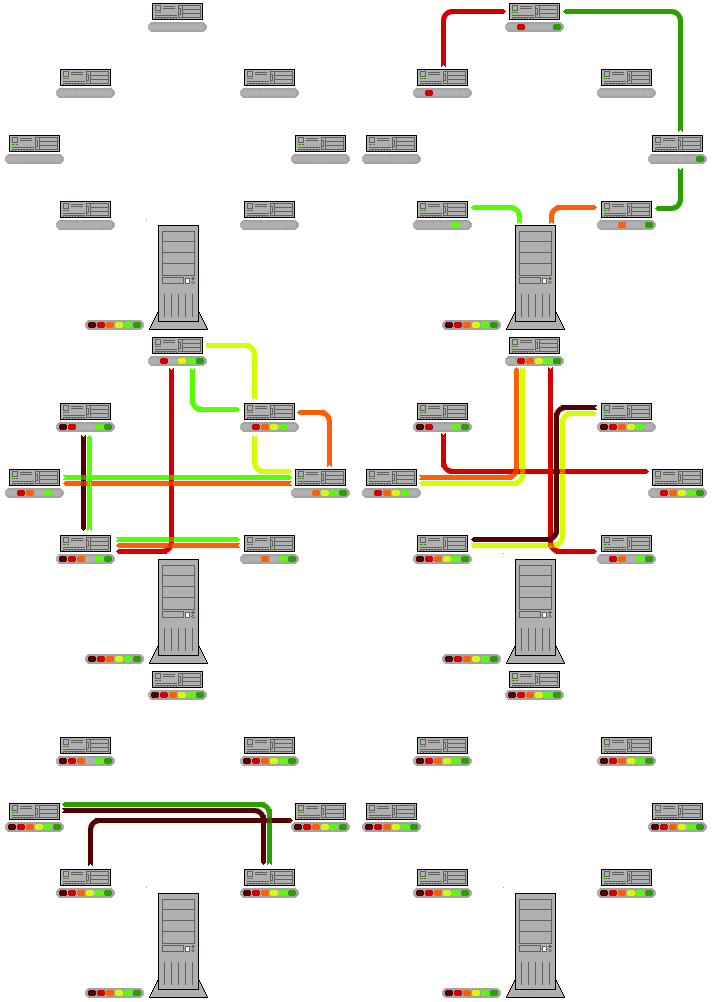
To avoid this, BitTorrent creates a different networking scheme. It uses the other clients who are also downloading the file to effectively act as servers to one another, simultaneously uploading the parts of the file received to others requesting the file. Hence, when you click on a file to download, several connections will be made to receive “slices” of the file that combine to create the entire file. Meanwhile, as you are downloading these “slices” you are also uploading them to anyone else that needs the parts you are receiving. Once the entire file is received it is considered polite to keep your client connected to act as a seed. A seed refers to a source that has the entire file available.
In this way BitTorrent relieves the burden of the servers but more significantly it makes it possible for anyone to disseminate a file quickly and easily without requiring expensive servers or an infrastructure of distribution. If the demand is there, the file will spread.
TERMINOLOGY
Torrent
Usually this refers to the small metadata file you receive from the web server (the one that ends in .torrent.) Metadata here means that the file contains information about the data you want to download, not the data itself. This is what is sent to your computer when you click on a download link on a website. You can also save the torrent file to your local system, and then click on it to open the BitTorrent download. This is useful if you want to be able to re-open the torrent later on without having to find the link again.
In some uses, it can also refer to everything associated with a certain file available with BitTorrent. For example, someone might say “I downloaded that torrent” or “that server has a lot of good torrents”, meaning there are lots of good files available via BitTorrent on that server.
Peer
A peer is another computer on the internet that you connect to and transfer data. Generally a peer does not have the complete file, otherwise it would be called a seed. Some people also refer to peers as leeches, to distinguish them from those generous folks who have completed their download and continue to leave the client running and act as a seed.
Seed
A computer that has a complete copy of a certain torrent. Once your client finishes downloading, it will remain open until you click the Finish button (or otherwise close it.) This is known as being a seed or seeding. You can also start a BT client with a complete file, and once BT has checked the file it will connect and seed the file to others. Generally, it’s considered good manners to continue seeding a file after you have finished downloading, to help out others. Also, when a new torrent is posted to a tracker, someone must seed it in order for it to be available to others. Remember, the tracker doesn’t know anything of the actual contents of a file, so it’s important to follow through and seed a file if you upload the torrent to a tracker.
Reseed
When there are zero seeds for a given torrent (and not enough peers to have a distributed copy), then eventually all the peers will get stuck with an incomplete file, since no one in the swarm has the missing pieces. When this happens, someone with a complete file (a seed) must connect to the swarm so that those missing pieces can be transferred. This is called reseeding. Usually a request for a reseed comes with an implicit promise that the requester will leave his or her client open for some time period after finishing (to add longevity to the torrent) in return for the kind soul reseeding the file.
Swarm
The group of machines that are collectively connected for a particular file. For example, if you start a BitTorrent client and it tells you that you’re connected to 10 peers and 3 seeds, then the swarm consists of you and those 13 other people.
Tracker
A server on the Internet that acts to coordinate the action of BitTorrent clients. When you open a torrent, your machine contacts the tracker and asks for a list of peers to contact. Periodically throughout the transfer, your machine will check in with the tracker, telling it how much you’ve downloaded and uploaded, how much you have left before finishing, and the state you’re in (starting, finished download, stopping.) If a tracker is down and you try to open a torrent, you will be unable to connect. If a tracker goes down during a torrent (i.e., you have already connected at some point and are already talking to peers), you will be able to continue transferring with those peers, but no new peers will be able to contact you. Often tracker errors are temporary, so the best thing to do is just wait and leave the client open to continue trying.
Downloading
Receiving data FROM another computer.
Uploading
Sending data TO another computer.
Share-Ratio
If you are using the experimental client with the stats-patch, you will see a share rating displayed on the GUI panel. This is simply the ratio of your amount uploaded divided by your amount downloaded. The amounts used are for the current session only, not over the history of the file. If you achieve a share ratio of 1.0, that would mean you’ve uploaded as much as you’ve downloaded. The higher the number, the more you have contributed. If you see a share ratio of “oo”, this means infinity, which will happen if you open a BT client with a complete file (i.e., you seed the file.) In this case you download nothing since you have the full file, and so anything you send will cause the ratio to reach infinity. Note: The share rating is just a number that is displayed for your convenience. It does not directly affect any aspect of the client at all. In general, out of courtesy to others you should strive to keep this ratio as high as possible, of course.
Distributed Copies
In some versions of the client, you will see the text “Connected to n seeds; also seeing n.nnn distributed copies.” A seed is a machine with the complete file. However, the swarm can collectively have a complete copy (or copies) of the file, and that is what this is telling you. Referring again to the “people at a table” analogy, consider the case where the book has 10 pages, and person A has pp.1-5 and B has pp.6-10. Collectively, A and B have a complete copy of the book, even though no one person has the whole thing. In other words, even if there are no seeds, as long as there is at least one distributed copy of the file everyone can eventually get a complete file. Meditate on this, the Zen of BitTorrent, grasshopper.
Choked
This is a term used in the description of the BitTorrent protocol. It refers to the state of an uploader, i.e. the thread that sends data to another peer. When a connection is choked, it means that the transmitter doesn’t currently want to send anything on that link. A BT client signals that it’s choked to other clients for a number of reasons, but the most common is that by default a client will only maintain –max_uploads active simultaneous uploads, the rest will be marked choked. (The default value is 4 and this is the same setting that experimental client GUI lets you adjust.) A connection can also be choked for other reasons, for example a peer downloading from a seed will mark his connection as choked since the seed is not interested in receiving anything. Note that since each connection is bidirectional and symmetrical, there are two choked flags for each connection, one for each Tx endpoint.
